
Photo Studio to Multi Concept Flux Controlnet + LORA
multiconceptv1
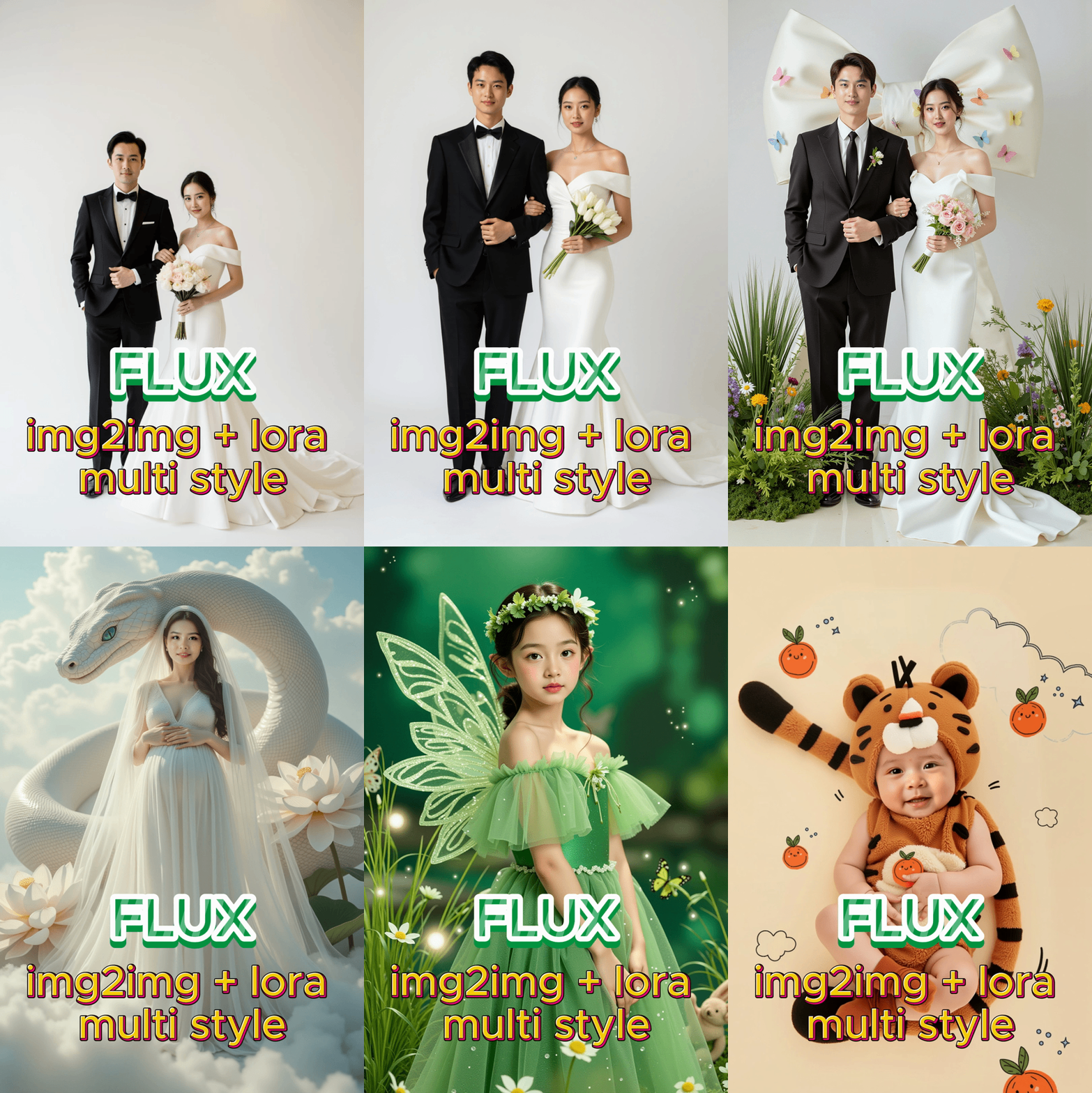
 Image info
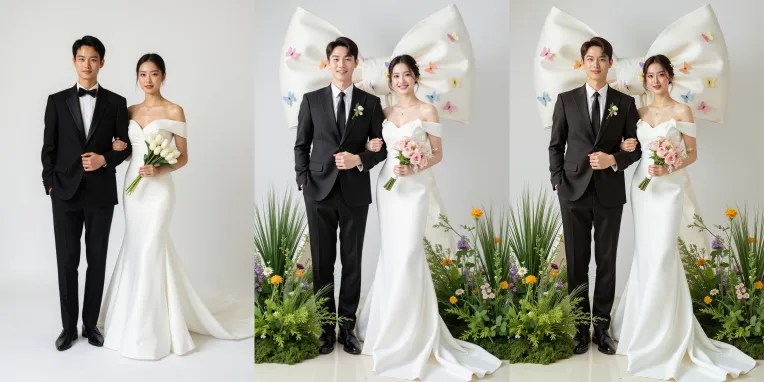 Image info
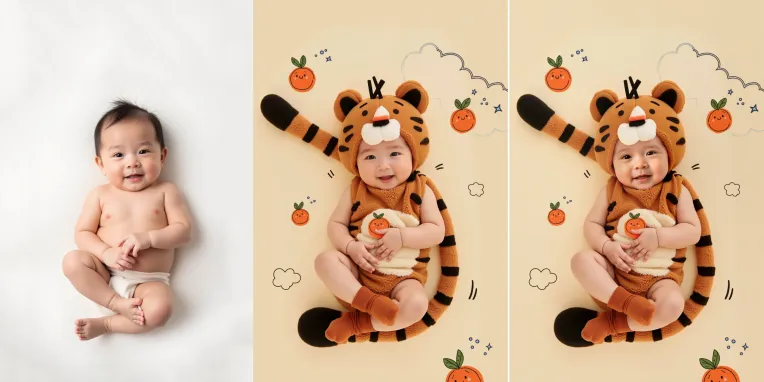 Image info
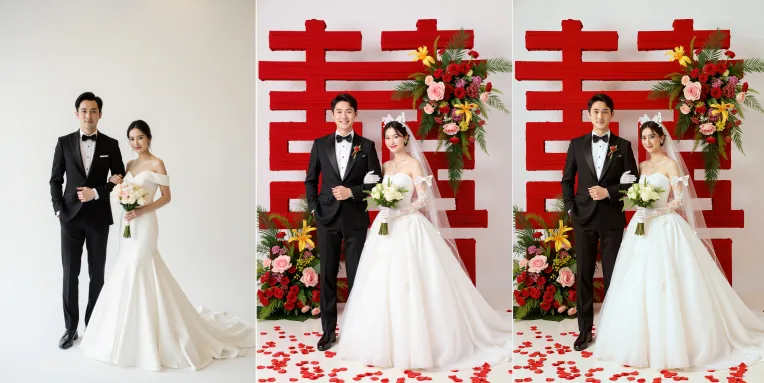 Image info
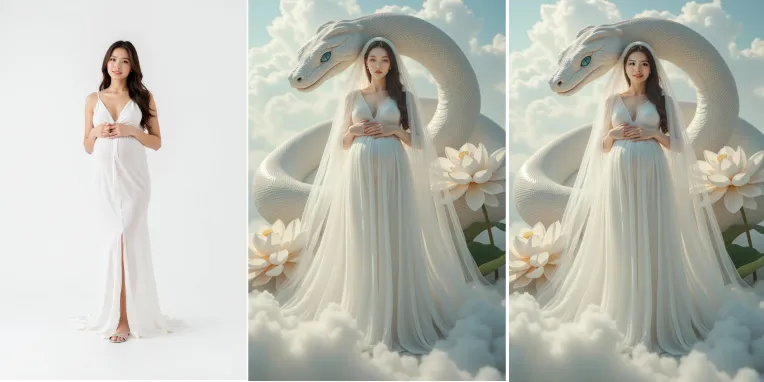 Image info
TIẾNG VIỆT BÊN DƯỚI:
This workflow is based on the Flux model, designed to transform a simple studio photo with a white or plain background into a concept AI image using a custom LoRA model of your choice. It is suitable for wedding photos, adult and children concept photos, and can even be applied to architecture if a compatible LoRA is available. The workflow utilizes a depth map model to preserve the original pose of the subject while adding other details and generating a fitting background from your selected generative LoRA.
Steps to follow:
🔹 Step 1: Upload your photo.
🔹 Step 2: Select the Flux model, LoRA, and the appropriate parameters provided in the note.
🔹 Step 3: Run the workflow with the following settings:
- LoRA Weight: 0.7-1 depending on the desired effect – the higher the value, the more different the result is from the original photo.
- ControlNet Weight: 0.6 – the lower the value, the more the pose will differ from the original photo.
🔹 Step 4: After generating the image, use Photoshop’s Auto Blend feature to cut the original face and blend it into the AI-generated image for the best final result.
------
TIẾNG VIỆT
Workflow này dựa trên mô hình flux được dùng để chuyển đổi một bức ảnh studio đơn giản phông trắng hoặc trơn, sang một ảnh với concept AI từ LORA tùy chọn. Workflow này phù hợp với ảnh cưới, ảnh concept người lớn và cả trẻ em, thậm chí có thể dùng cho kiến trúc nếu có lora phù hợp. Nó sử dụng mô hình depth map để giữ nguyên thế tạo dáng của người mẫu, chỉ thêm các chi tiết khác và tạo ra nền phù hợp từ lora tạo sinh tùy chọn của bạn.
Các bước thực hiện:
🔹 Bước 1: Tải ảnh của bạn lên.
🔹 Bước 2: Chọn mô hình Flux và LoRA và các tham số phù hợp tôi đã để sẵn trong note
🔹 Bước 3: Chạy workflow với các cài đặt sau:
LoRA Weight: 0.7-1 tùy vào mức độ, càng cao thì càng khác ảnh gốc.
ControlNet Weight: 0.6, càng thấp thì pose dáng khác với ảnh gốc.
🔹 Bước 4: Sau khi ảnh được tạo, sử dụng Auto Blend của Photoshop để cắt khuôn mặt ảnh gốc và blend vào ảnh AI tạo ra để cho kết quả tốt nhất.
--------------
该工作流基于Flux模型,用于将一张简单的白色或纯色背景棚拍照片转换为带有自定义LoRA概念的AI生成图片。此工作流适用于婚纱照、成人和儿童创意写真,甚至如果有合适的LoRA模型,也可用于建筑领域。它使用深度图模型来保留模特的原始姿势,仅添加其他细节,并根据你选择的LoRA生成适合的背景。
操作步骤如下:
🔹 第一步:上传你的照片。
🔹 第二步:选择Flux模型、LoRA模型,以及笔记中提供的合适参数。
🔹 第三步:按照以下设置运行工作流:
- LoRA权重:0.7-1,根据需求调整,数值越高,生成图与原图差异越大。
- ControlNet权重:0.6,数值越低,生成图中的姿势与原图差异越大。
🔹 第四步:图片生成后,使用Photoshop的自动混合(Auto Blend)功能,将原图中的人脸剪切下来,融合到AI生成图中,以获得最佳效果。